
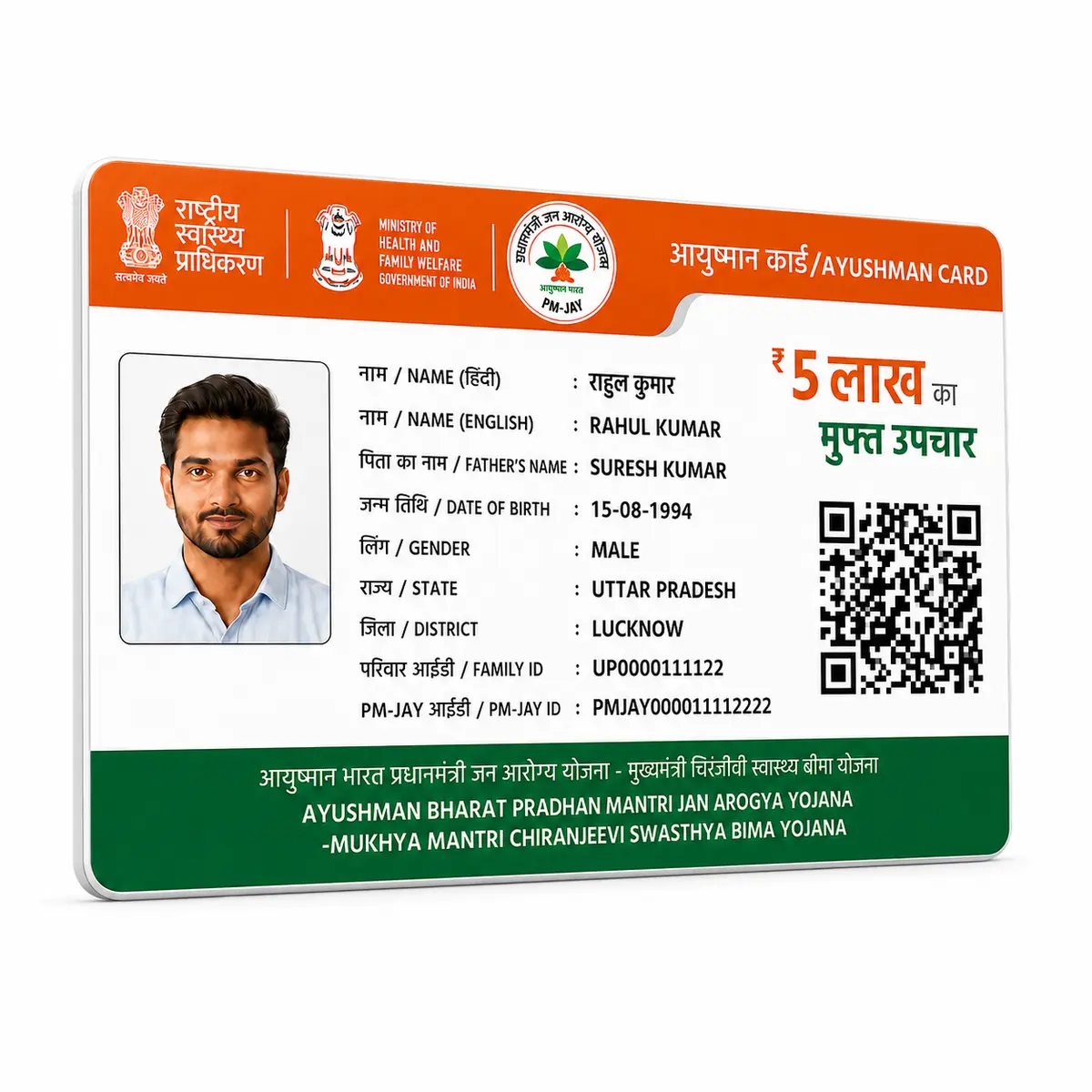
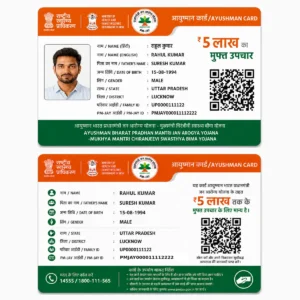
PM-JAY Bulk Print Portal: Complete Guide to Bulk Ayushman Card Printing
If you’ve searched for “pm jay bulk print” or “pm jay bulk print portal,” you’re probably a CSC operator, agency staff member, or hospital desk employee trying to generate and print Ayushman cards for more than one beneficiary at a time — not a single individual looking to download their own card.
That distinction matters, because most articles online blur the two together. This guide doesn’t. Here, “PM-JAY bulk print” refers specifically to the batch card download and printing function inside the Beneficiary Identification System (BIS) — the operator-level portal at bis.pmjay.gov.in — not the simple one-card self-download available to the general public on beneficiary.nha.gov.in.
Below, you’ll get an accurate breakdown of what the feature actually does, who’s authorized to use it, exact login steps, the batch workflow from search to print, common errors operators run into, and answers to the questions we see asked most. If you’re printing cards for many beneficiaries regularly and want them on durable PVC rather than paper printouts, we’ll also point you to that option toward the end.
What Is PM-JAY Bulk Print?
PM-JAY bulk print is the process of generating and downloading multiple Ayushman Bharat (PM-JAY) e-cards at once, rather than one at a time, through the BIS operator portal. Instead of searching, verifying, and downloading a card individually for each beneficiary, an authorized operator selects a batch of eKYC-approved records, downloads the card data as an Excel/CSV file, assigns it a batch number, and sends the batch for printing — often district-wise, for enrollment camps, hospital empanelment drives, or CSC bulk service requests.
This is distinct from:
| Feature | Who it’s for | Portal | Scope |
|---|---|---|---|
| Beneficiary self-download | Individual cardholders | beneficiary.nha.gov.in | One card at a time |
| BIS Self Print Card | Individual, assisted by CSC | bis.pmjay.gov.in/BIS/selfprintCard | One card at a time |
| PM-JAY Bulk Print (BIS batch function) | Operators, Agency Operators, ISA, SHA | bis.pmjay.gov.in | Multiple cards in one batch |
What Is the PM-JAY Bulk Print Portal?
There isn’t a separately branded “bulk print portal” with its own domain — this is a common misconception. The bulk print function lives inside the main BIS portal, under the operator dashboard. Once logged in with an authorized operator role, the option to mark approved cards for batch download and printing appears as part of the standard workflow, alongside search, eKYC, and card delivery tools.
Who Can Access PM-JAY Bulk Print?
Access is role-based, not open to the public. The BIS system recognizes several operator types:
- Operator (CSC) — Common Service Centre operators pre-authorized by the State to search, verify, and process beneficiaries
- Agency Operator — Staff working under an Implementation Support Agency (ISA)
- ISA — Insurance/Implementation Support Agency, which approves records that don’t auto-clear
- SHA — State Health Agency, with the widest access including card actions and disabling records
If you’re an individual beneficiary, you won’t see a “bulk print” option — and that’s expected. Bulk actions require a State-issued operator ID.
Why Is Bulk Print Used?
Bulk print exists because individual, one-by-one card generation doesn’t scale for real-world scenarios like:
- Ayushman enrollment camps processing hundreds of families in a single day
- Empanelled hospitals onboarding patients in bulk during admission drives
- CSC operators fulfilling multiple card requests from their village or ward
- State Health Agencies running district-wide catch-up enrollment for missed beneficiaries
Benefits of Bulk Printing
- Processes many eKYC-approved records in one workflow instead of repeating steps per person
- Organizes output by district and batch number, which simplifies physical card handling and delivery
- Reduces per-card operator time, which matters when service targets or camp deadlines are involved
- Keeps a batch-level audit trail (batch numbers) rather than untracked individual downloads
Eligible Users at a Glance
| Role | Typical Access Level |
|---|---|
| Operator (CSC) | Search, eKYC, link Aadhaar, add family member, download approved cards |
| Agency Operator | Similar to Operator, working under an ISA |
| ISA | Approves records below auto-approval threshold, manages batches |
| SHA | Full access including card actions (disable/deactivate) and district-level batch control |
Required Login Credentials
To log in as an Operator on BIS, you’ll need:
- A User ID created during your operator signup/registration process, or your registered mobile number
- One authentication mode: Password, Mobile OTP, Aadhaar OTP, or Fingerprint (biometric)
- Captcha verification
CSC operators typically receive their operator credentials through their State’s onboarding process alongside their Digital Seva/CSC ID — not through open self-registration on the BIS site itself.
System Requirements
Nothing exotic is needed, but a few basics prevent avoidable failures:
- Stable internet connection (batch downloads and PDF generation can time out on weak connections)
- An updated browser — Chrome or Firefox are the most consistently reliable for government portals
- JavaScript and cookies enabled
- Pop-ups allowed for the BIS domain (many “download not working” issues are simply blocked pop-ups)
- A PDF reader for viewing/printing downloaded cards
- Aadhaar linked to an active mobile number, if using Aadhaar OTP for authentication or beneficiary eKYC
Documents Required
For each beneficiary record being processed for bulk printing, operators typically need:
- Aadhaar number (primary identifier for search and eKYC)
- Family ID, Ration Card number, or PMJAY ID (alternate search fields)
- Scheme and sub-scheme selection (PMJAY or RAN/HMDG, depending on state)
- State and district (required for correct batch routing)
Step-by-Step Guide: How to Bulk Print PM-JAY Cards
This walks through the actual BIS operator workflow, from login to printed cards.
Step 1: Login to the BIS Portal
- Go to the official BIS login page at bis.pmjay.gov.in
- Select the Operator login option
- Enter your User ID or registered mobile number
- Choose your authentication mode — Password, Mobile OTP, Aadhaar OTP, or Fingerprint
- Enter the Captcha
- Click Login
Note: If you manage more than one role (for example, both Operator and Agency Operator), use the Switch Role option inside the dashboard rather than logging out and back in.
Step 2: Search Beneficiaries
- Select the Scheme (PMJAY or RAN/HMDG) and your State
- Choose a search method: Aadhaar Number, Family ID, or PMJAY ID
- Enter the relevant details and click Search
- Aadhaar/PMJAY ID search returns a single record; Family ID search returns the full family list
Step 3: Complete or Confirm eKYC
Only eKYC-approved records are eligible for bulk/batch download. If a record isn’t yet verified:
- Click the eKYC icon next to the beneficiary
- Choose an authentication mode — Aadhaar OTP, Fingerprint, IRIS Scan, or Face Auth
- Complete verification
- Records with a match score above the auto-approval threshold clear immediately; others route to ISA/SHA for manual approval
Step 4: Select Records for Bulk Download
- From the list of eKYC-approved (“ready to print”) records, select the ones you want to include in this batch
- Mark them for Download
- Choose to download the batch as Excel/CSV
Step 5: Assign a Batch Number and Generate Cards
- Select the card data district-wise
- Assign the batch number for the print run
- Click Proceed to generate the batch for printing
Step 6: Download and Print
- Once the batch is generated, download the resulting card data/PDF set
- Print using a standard printer for paper copies, or forward the batch to a card printing service if you want durable PVC output for distribution
- For physical handover, use the Card Delivery option: select the beneficiary, verify the receiver via OTP/Fingerprint/IRIS, and mark the card as delivered
Common Errors in PM-JAY Bulk Print
| Error | Likely Cause |
|---|---|
| Login failed | Wrong authentication mode selected, expired OTP, or mismatched mobile number |
| Bulk print / batch option not visible | Logged in with a role that doesn’t have batch access (e.g., individual beneficiary login instead of Operator) |
| PDF not generating | Pop-ups blocked, weak internet connection, or session timeout mid-download |
| Printer not printing correctly | Outdated printer driver, wrong paper/card size setting, or PDF rendering issue in the browser’s built-in viewer |
| Permission denied on batch action | Records not yet eKYC-approved, or operator role lacks SHA/ISA-level batch permissions for that district |
| Records missing from search | Incorrect scheme/sub-scheme selected, or beneficiary not yet enrolled under that state’s SECC/eligibility data |
Troubleshooting Guide
If login keeps failing: Double-check that your registered mobile number is active and linked correctly. Try switching authentication modes — if Aadhaar OTP isn’t arriving, try Mobile OTP or Password instead. Clear browser cache if the Captcha repeatedly fails to load.
If the bulk print option doesn’t appear: Confirm your login role. Only Operator, Agency Operator, ISA, and SHA roles see batch functions — a personal beneficiary login will not show this option, by design.
If PDFs won’t download: Allow pop-ups for bis.pmjay.gov.in in your browser settings, switch to Chrome or Firefox if you’re on a less common browser, and retry on a stable connection rather than mobile data with weak signal.
If a record won’t move to “ready to print”: It likely hasn’t cleared eKYC yet. Check whether it’s sitting in ISA/SHA approval queue — records below the auto-approval match threshold need manual clearance before they’re batch-eligible.
If printed cards look distorted or cut off: This is usually a printer margin/scaling setting rather than a portal issue — set your PDF print dialog to “Actual Size” rather than “Fit to Page” for card-format printing.
If the portal is slow or times out during a large batch: Government portals tend to see peak load during business hours. Try early morning or evening, and avoid selecting extremely large batches in one action — smaller, more frequent batches are more reliable than one massive batch.
Frequently Asked Questions
1. What is PM-JAY bulk print? It’s the process of generating and downloading multiple Ayushman Bharat cards in one batch through the BIS operator portal, instead of one at a time.
2. Is there a separate “PM-JAY bulk print portal”? No. Bulk print is a function inside the main BIS portal (bis.pmjay.gov.in), not a separately branded site.
3. Who can use PM-JAY bulk print? Only authorized roles: CSC Operators, Agency Operators, ISA, and SHA — not individual beneficiaries.
4. How do I get operator access for bulk print? Operator credentials are issued through your State’s CSC/Digital Seva onboarding process, not open self-registration.
5. What’s the difference between BIS and the beneficiary portal? Beneficiary.nha.gov.in is for individuals downloading their own single card. BIS (bis.pmjay.gov.in) is the operator-level system with search, eKYC, and bulk/batch functions.
6. Can I bulk print cards that haven’t completed eKYC? No. Only eKYC-approved (“ready to print”) records are eligible for batch download.
7. What format does bulk download use? Approved card data is downloaded as Excel/CSV, organized by batch number and district.
8. Do I need Aadhaar for every beneficiary? Aadhaar is the primary identifier for search and eKYC, though Family ID or PMJAY ID can also be used to locate records.
9. What authentication methods work for operator login? Password, Mobile OTP, Aadhaar OTP, or Fingerprint, followed by Captcha verification.
10. Why does my batch show “permission denied”? Your operator role likely doesn’t have batch-level permission for that district, or the records aren’t yet eKYC-approved.
11. Can I switch between Operator and Agency Operator roles? Yes, using the “Switch Role” option inside the BIS dashboard rather than logging out.
12. What happens to records below the auto-approval threshold? They route to ISA or SHA for manual review before becoming eligible for download or printing.
13. Can SHA disable or deactivate a printed card? Yes — SHA-level accounts can disable cards for reasons like duplicate records, eligibility expiry, or impersonation.
14. Is bulk print free to use? The BIS portal itself doesn’t charge for the digital process; any cost typically comes from physical printing/materials if you’re producing hard cards.
15. Can I bulk print on mobile? The portal is accessible on mobile browsers, but batch selection and printing workflows are noticeably easier on a desktop or laptop screen.
16. Which browser works best for BIS? Chrome and Firefox tend to be the most reliable for government portal compatibility and PDF handling.
17. Why is my downloaded PDF blank or broken? Usually a pop-up blocker or an interrupted download — disable pop-up blocking for the site and retry on a stable connection.
18. Can I print Ayushman cards directly on PVC? The BIS portal generates the digital card/PDF; converting that into a durable PVC card requires a separate PVC card printing step, which many operators outsource for bulk orders.
19. How is “batch number” different from beneficiary ID? The batch number tracks a group of cards processed together for printing/delivery; it has nothing to do with an individual beneficiary’s ID.
20. What if a beneficiary’s name doesn’t appear in search? Double-check the scheme/sub-scheme selection and state/district fields — mismatched selections are the most common reason records don’t surface.
21. Can hospitals use bulk print at admission? Yes, empanelled hospital staff with appropriate operator access commonly use this during bulk patient onboarding.
22. Is there a limit to how many cards I can batch at once? The portal doesn’t publish a fixed cap, but smaller, more frequent batches tend to process more reliably than very large single batches.
Best Practices for PM-JAY Bulk Print
- Complete eKYC for all target beneficiaries before attempting a batch download — it’s the single biggest cause of incomplete batches
- Process batches district-wise, as the system is structured that way, rather than mixing districts in one action
- Keep batch numbers logged separately (spreadsheet or register) so you can trace which cards belong to which print run
- Run large batches during off-peak hours to reduce timeout risk
- Verify a sample of downloaded records against source data before sending a batch to print
Security Tips
- Never share your Operator ID, password, or OTP with anyone outside your authorized workflow
- Log out of BIS after each session, especially on shared CSC devices
- Avoid saving beneficiary Aadhaar or health data on local, unsecured drives longer than necessary for the print run
- Use only the official domain (bis.pmjay.gov.in) — unofficial lookalike sites exist and should not be trusted with beneficiary data or login credentials
- Report suspicious portal behavior through the official support channel rather than third-party forums
Mobile Compatibility
BIS is accessible from mobile browsers, and single-record actions like search or individual eKYC work reasonably well on a phone. Bulk selection, however, involves checkboxes across longer lists and CSV handling, which is meaningfully easier on a larger screen. For actual batch print runs, a desktop or laptop is the more practical choice.
Browser Compatibility
The portal is built for standard modern browsers. Chrome and Firefox (latest versions) tend to give the most consistent experience for form submission, OTP handling, and PDF downloads. If you hit persistent rendering or download issues, switching browsers is often a faster fix than troubleshooting settings.
Common Mistakes to Avoid
- Attempting bulk download before completing eKYC on all selected records
- Mixing multiple districts into a single batch
- Ignoring pop-up blocker warnings and assuming the portal itself is broken
- Using unofficial or lookalike websites that mimic the BIS/beneficiary portal
- Forgetting to note batch numbers, making later delivery tracking difficult
- Assuming individual beneficiary login credentials will unlock operator-level bulk functions — they won’t
From Digital Card to Physical PVC Card
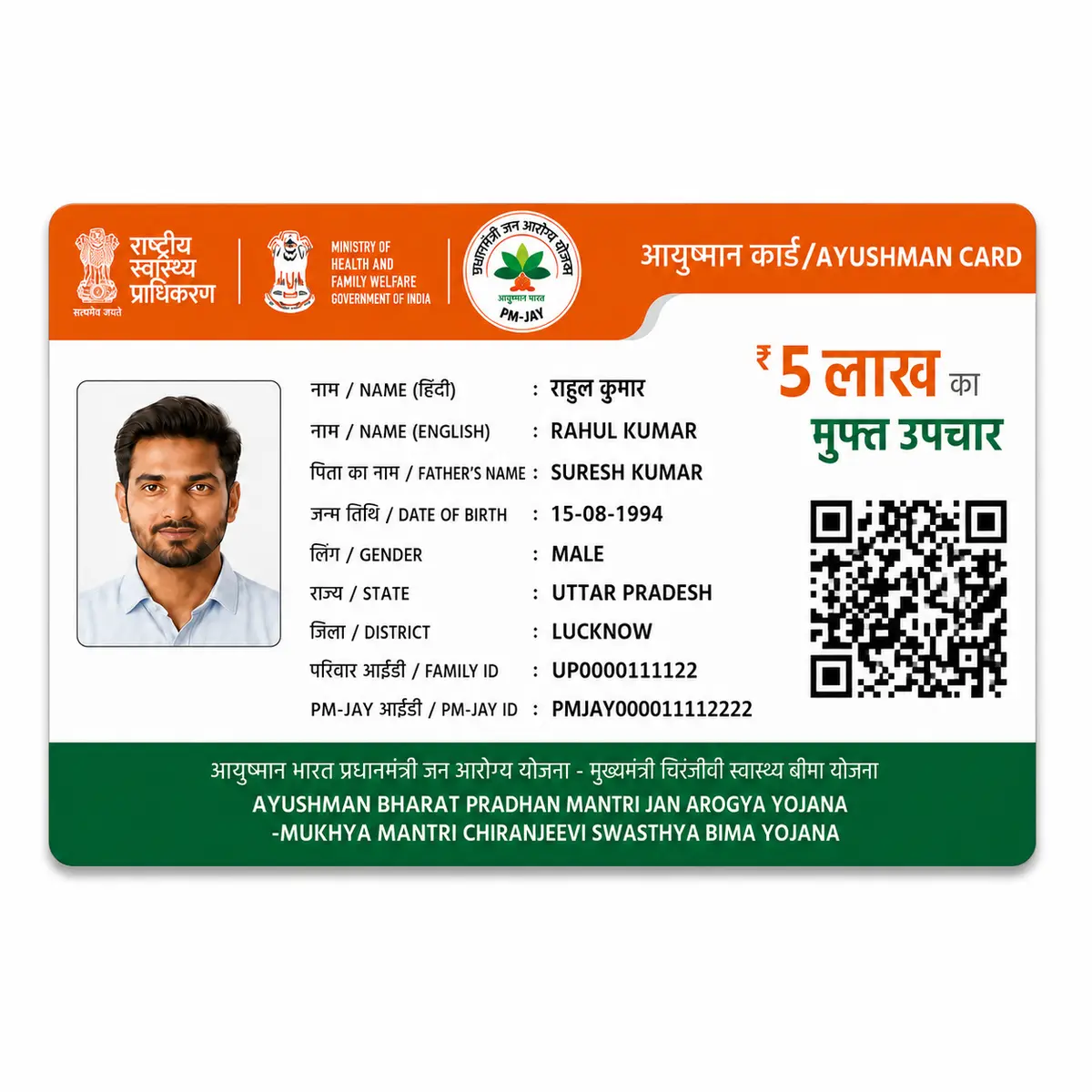
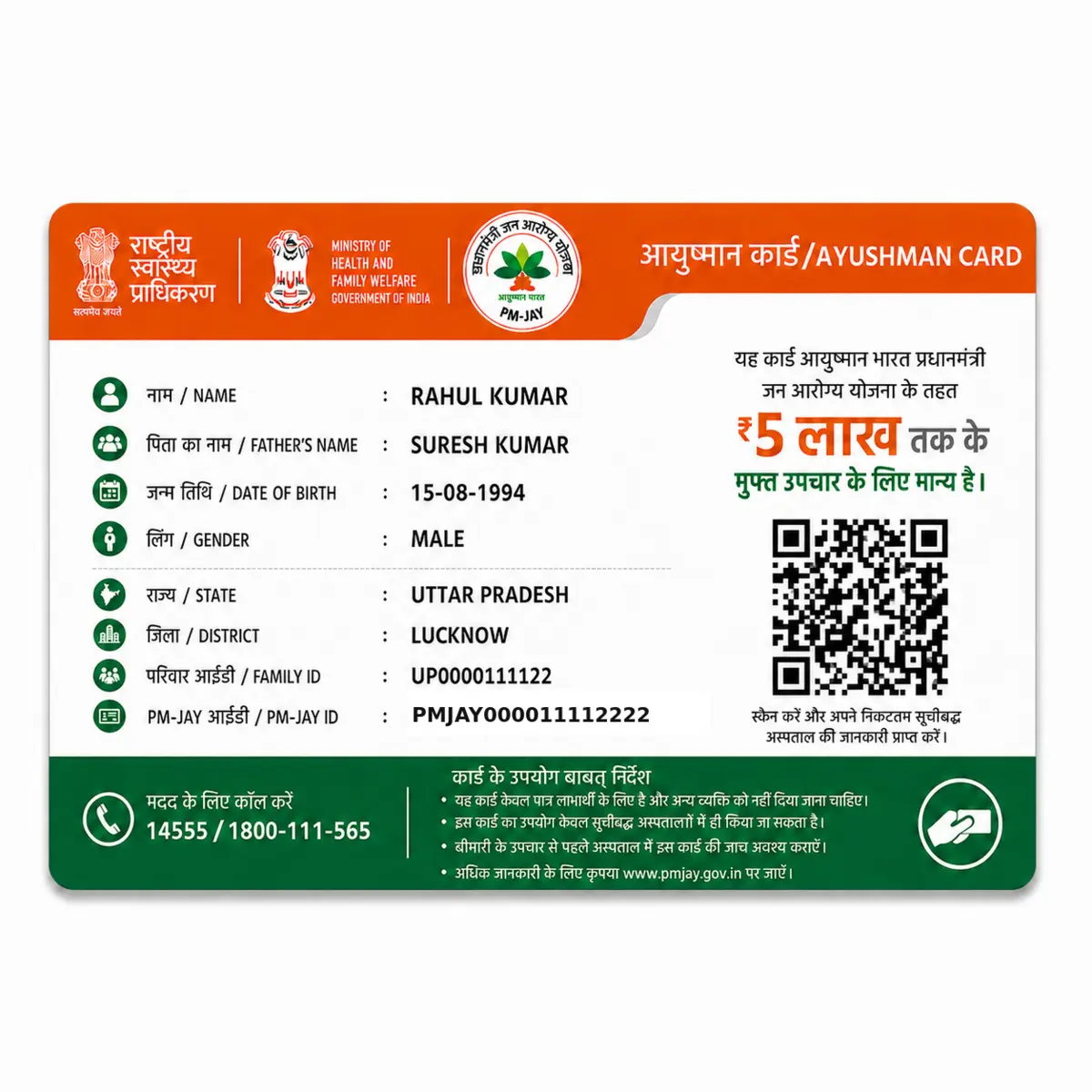
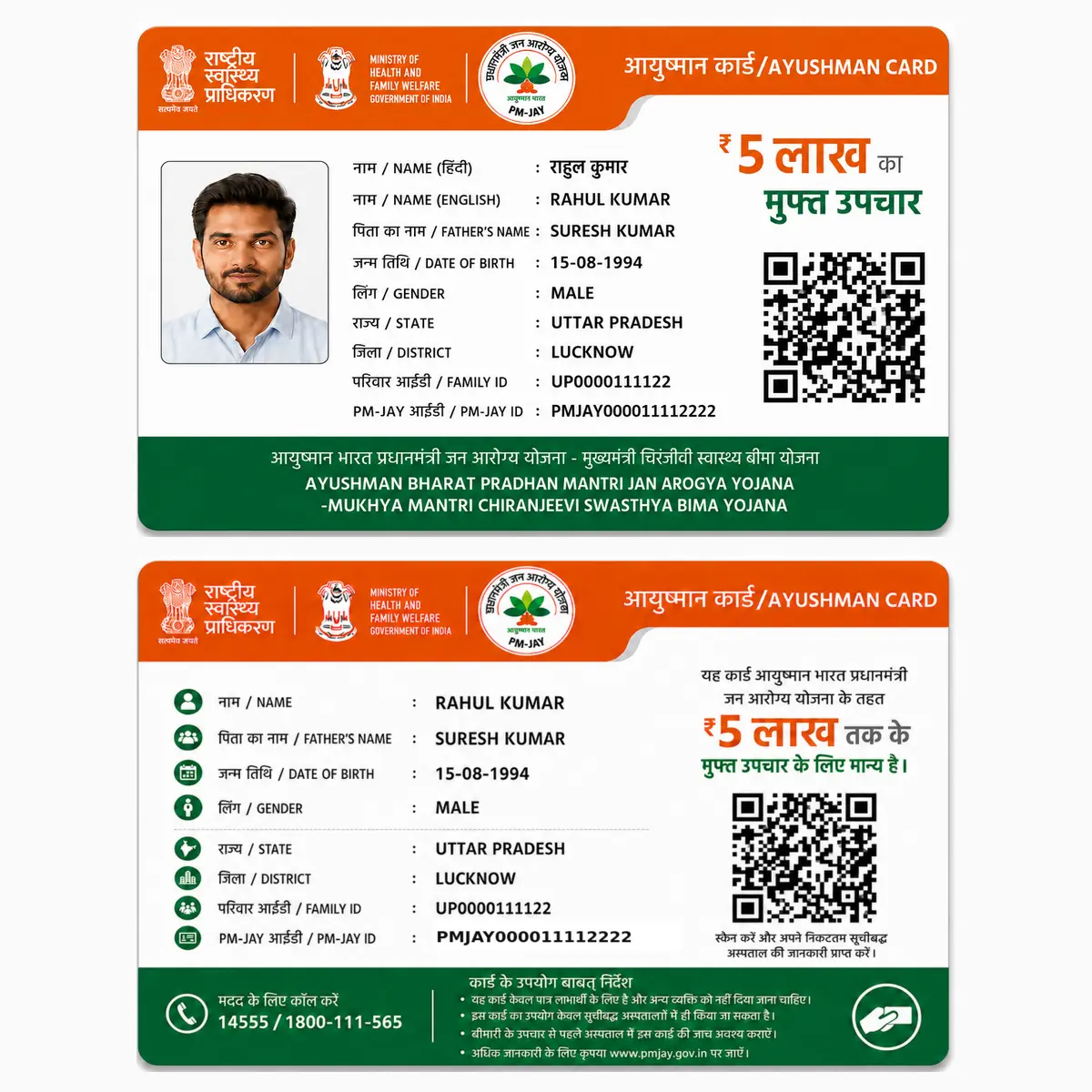
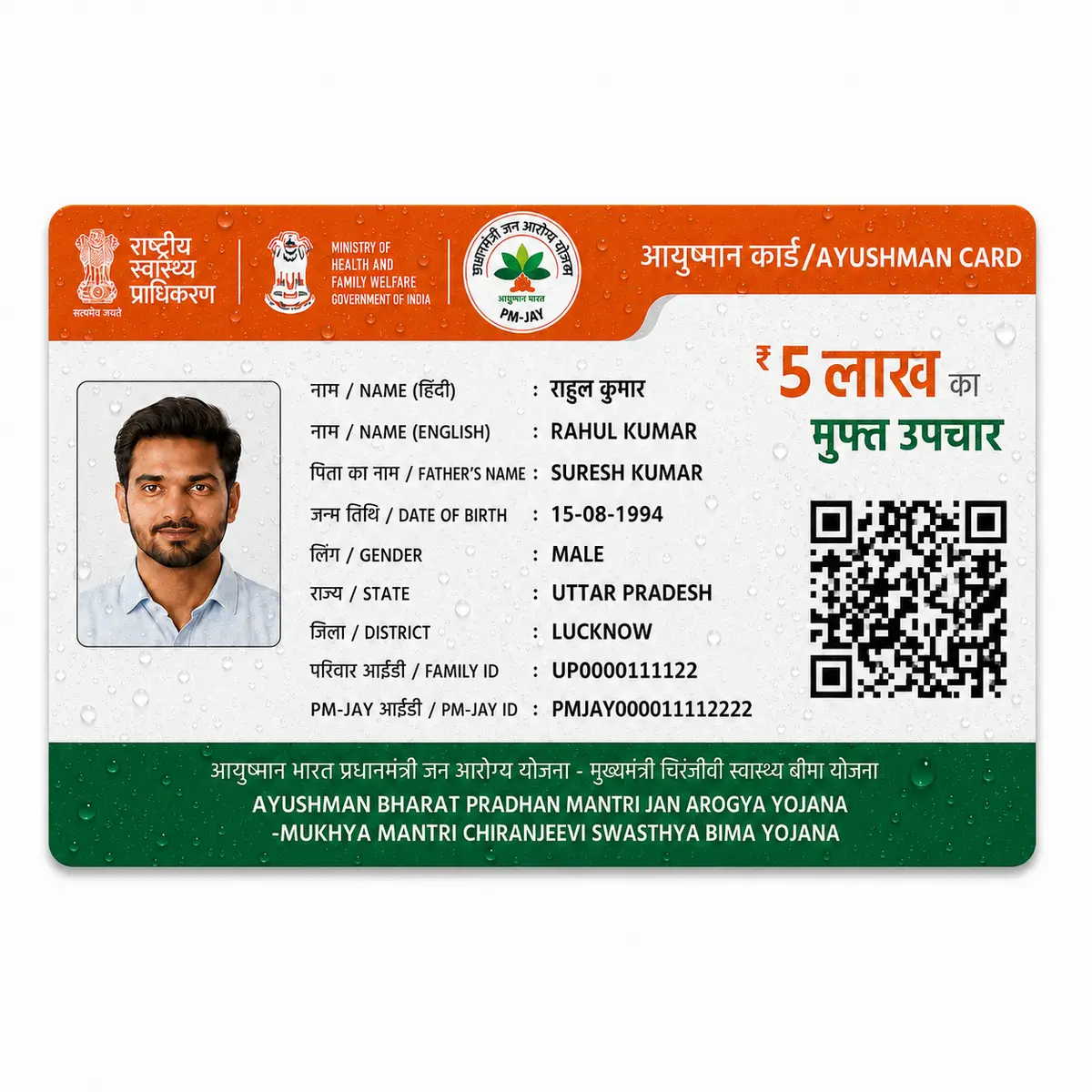
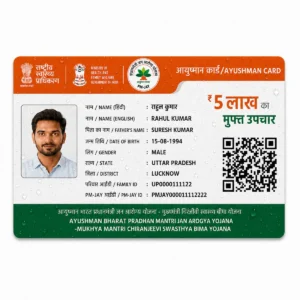
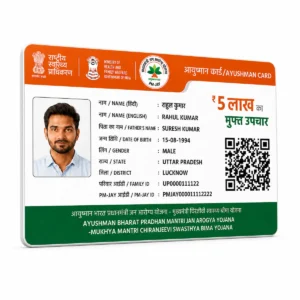
The BIS bulk print process gets you a verified, downloadable card — typically as a PDF. For CSC operators and agents fulfilling many requests, printing those on plain paper often isn’t what beneficiaries or empanelled hospitals actually want; a durable, laminated-feel PVC card holds up far better in a wallet and looks more professional at hospital counters.
If you’re processing PM-JAY cards in volume and want them delivered as finished PVC cards rather than paper printouts, that’s a separate production step from the BIS portal itself — one built specifically for bulk CSC and agent orders, with GST-invoiced billing for resellers.
Conclusion
PM-JAY bulk print isn’t a mysterious separate portal — it’s a batch function built into the BIS operator system, available to CSC Operators, Agency Operators, ISA, and SHA roles, and gated behind eKYC approval. Once you understand the actual workflow — login, search, eKYC, select, download as CSV, assign a batch number, print — the process is straightforward, even if the terminology floating around online isn’t always accurate.
If your bulk print runs consistently end in stacks of paper printouts that CSC clients ask you to redo on proper cards, that’s the point where a dedicated bulk PVC printing service becomes worth adding to your workflow rather than repeating the same paper-print cycle.